
Frequently asked questions
Product page features
Why isn't the Dimensions, Materials and care, Delivery and assembly or Order a sample block showing?
These blocks hide themselves when the product has no data for them. Check these points:
- The block is in the product template that the product uses. In the theme editor, open Products and select the right template.
- The metafield definition uses the exact namespace and key, for example
specs.width, notspecs.Width. - Storefronts access is turned on for the metafield definition and for the "Material" metaobject.
- The product has a value for the metafield. Open the product in the admin and scroll to Metafields.
- For materials: each material entry has a name. If the "Material" definition uses Active-draft status, the entries are set to Active.
For the full setup, see Metafields and metaobjects setup.
Why is "Will it fit?" missing when the dimensions table is showing?
"Will it fit?" needs the width, depth and height of the product. If one of them is empty, only the table is shown. Also check that Show fit helper is on in the Dimensions block.
Can I show inches instead of centimeters?
Yes. In the Dimensions block, set Default units to Inches and pounds. Shoppers can still switch to centimeters. When a shopper chooses a unit, the choice is remembered on their device and used on every product page.
You can enter your values in centimeters, inches or any other unit. The theme converts them.
My dimensions show strange numbers. Why?
The unit is probably wrong. If your store uses the imperial unit system, the admin selects inches by default, so 220 becomes 220 inches. Open the product, check the unit next to each value and save. See Check your store's unit system first.
Can samples be free?
Yes. A sample is a normal product. Set its price to 0 and the Order a sample block shows Free. Give it a price to sell paid samples. Remember that free samples still go through checkout, so set up shipping rates for them.
Can each product have its own sample?
Yes. Use the product metafield specs.sample_product to link each product to its sample. The Sample product setting in the Order a sample block is used only for products without this metafield.
How do I add a size table or a care guide?
Use a Collapsible tab block in the Product information section:
- Open the product template in the theme editor.
- Select Add block → Collapsible tab.
- Enter a Heading, such as "Size guide".
- Add the content in Content, or choose a page in Content from page. A page is useful when many products share the same table.
- Select Save.
For product-specific measurements, the Dimensions block is the better choice, because it converts units and powers "Will it fit?".
Can I show different blocks for different products?
Yes. Create a second product template in the theme editor (Products → Create template), change its blocks, and assign it to products in the admin (Products → product → Theme template).
Why does the Shop the room section show a placeholder?
The section needs an image and a product for each hotspot. Without an image it shows a placeholder illustration. A hotspot without a product shows its label and a sample price. Choose a product for every hotspot, or remove the hotspot.
Why does Shop the room say "Choose options" instead of "Add to cart"?
Products with options (such as sizes or colors) or with subscriptions need a choice before they can go in the cart. For these products, the card links to the product page. Products without options get an Add to cart button.
Design and navigation
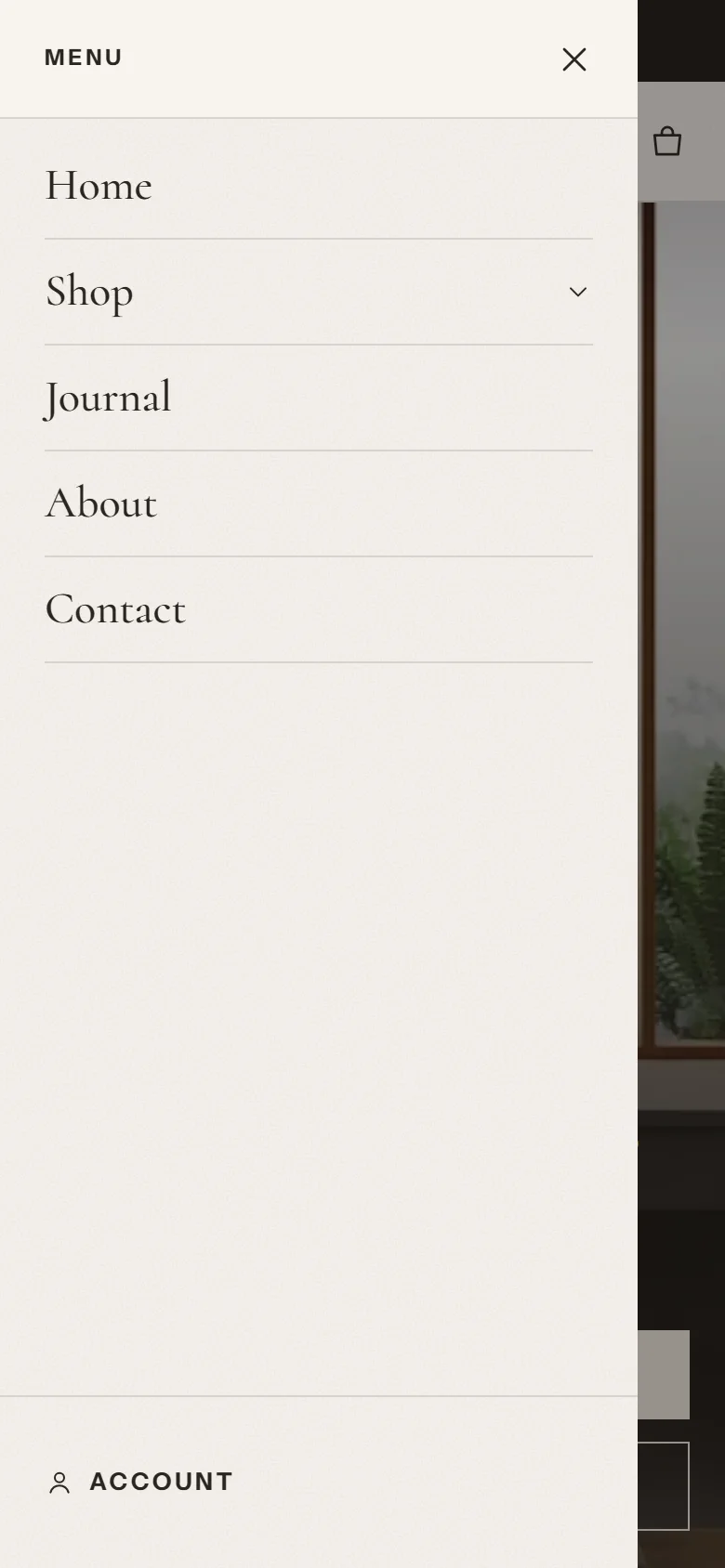
Why does my header menu open as a drawer on a large screen?
On large screens, the main menu sits in the header row. When the menu doesn't fit on one line, because it has many items or long titles, the header keeps the menu button and opens the menu in a drawer, as on phones. This keeps the logo and icons visible.
To show the menu in the header row again:
- shorten the menu item titles, or
- move some items into dropdowns (child links under a main item).
How do I create a mega menu?
- In the Header section, set Menu style to Mega menu.
- In your menu (Content → Menus), add three levels of links: main items, their child links and grandchild links. The third level is shown in columns.
- Optional: add a Mega menu promotion block to the Header section. Enter the name of a main menu item in Main menu item, for example "Living room", and add an image and a link.
Can I change the preset after installing the theme?
You can change every setting at any time, so you can make the theme look like another preset. Theme styles in Theme settings change the global settings, such as colors and fonts, but not your home page content. To start with the home page of another preset, add Tenora again from the Theme Store with that preset. See Installation and setup.
How do I set up filters on collection pages?
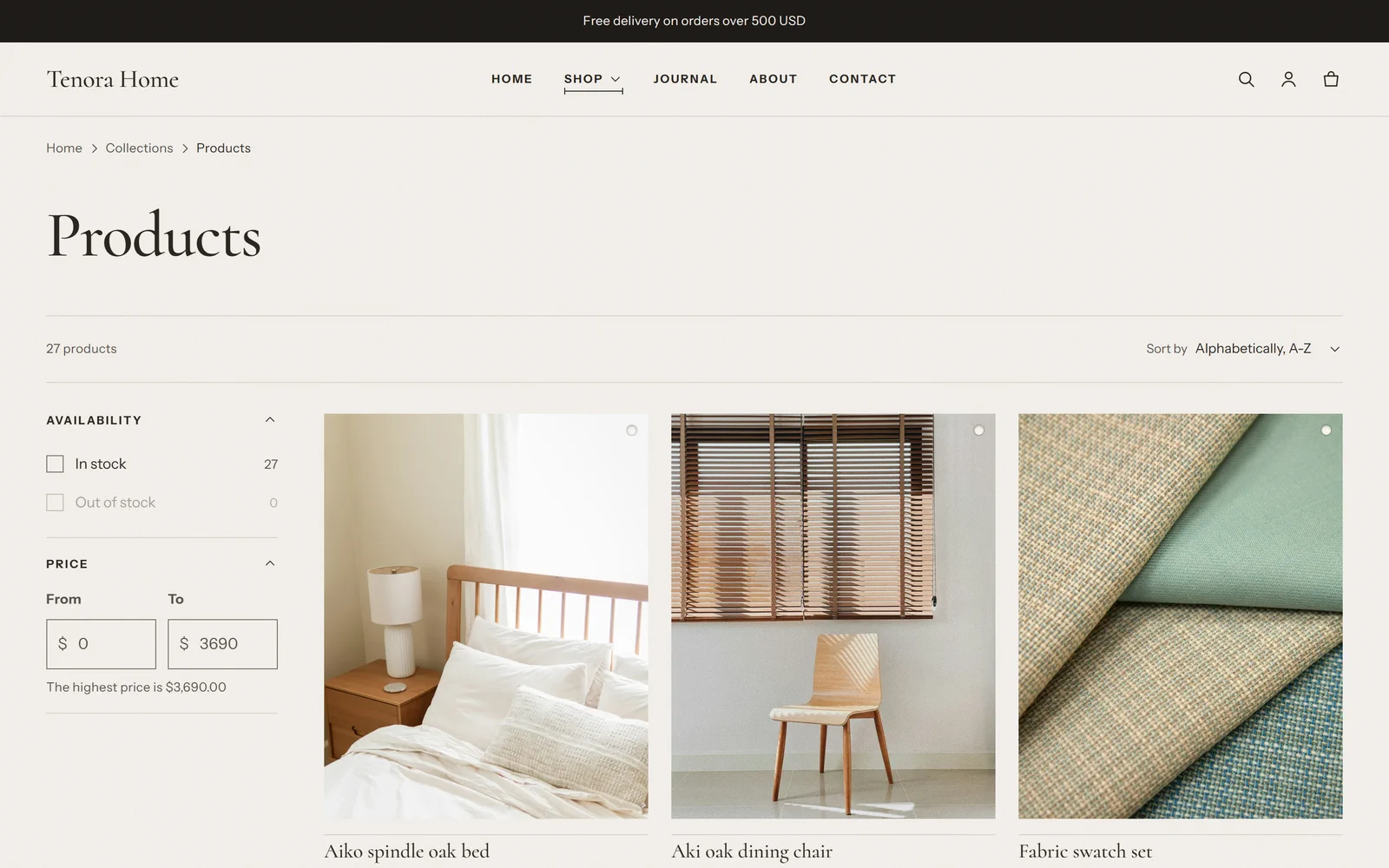
Filters come from the Search and Discovery app by Shopify. Add filters there, such as availability, price, product type or color. In the theme editor, open a collection page and use Enable filtering and Filter layout (Sidebar or Drawer) in the Product grid section.
Why does my logo look small?
The logo is limited to 56px in height in the header. Tall or square logos therefore look smaller than wide logos. Increase Logo width in Theme settings → Logo and favicon, or use a wider version of your logo.
Languages and currencies
Is the theme translated?
Yes. The storefront text is translated into 30 languages in addition to English, and the theme editor into 20 languages. Your own content, such as products and section text, must be translated with Shopify's translation tools. See Selling globally.
How do I change a text that the theme adds, such as "Add sample"?
Go to Online Store → Themes, select the ... (actions) button on the Tenora theme card, and select Edit default theme content. Search for the text, change it and save. Some texts, such as the Order a sample heading and button label, are also block settings in the theme editor.
Why do my prices show "USD" after the amount?
The Show currency codes setting is on. You can turn it off in Theme settings → Currency format. The estimated total in the cart always shows the currency code.
Orders and gift cards
Why did my customer not receive their gift card?
Shopify sends the gift card email when the gift card is fulfilled. If orders are fulfilled by hand, the customer gets the gift card only after you fulfill it. To send gift cards right away, go to Settings → General → Order processing and turn on Automatically fulfill only the gift cards of the order.
Support and updates
Will I lose my settings when I update the theme?
No. When you update, Shopify copies your settings and content to the new version. Changes to the theme code are not copied. See Update the theme.
Where can I get help?
See Support for what we cover and how to contact us.