
Plumbline theme documentation
Welcome to the documentation for Plumbline, a Shopify theme by Kerfline. This guide helps you install the theme, set it up and keep your store running well.
What Plumbline is
Plumbline is an Online Store 2.0 theme for stores that sell furniture, outdoor and garden furniture, lighting and home décor.
Shoppers who buy furniture often ask the same questions before they order: Is it the right size? What is it made of? When will it arrive? Plumbline answers these questions on the product page with built-in features. You don't need to install an app for them.
- Dimensions shows the size and weight of a product, with a switch between centimeters and inches.
- Will it fit? checks the product against the shopper's doorway and space. Shoppers measure once, and every page uses the same measurements.
- Drawings show the front, side and plan of each piece to scale, drawn from its dimensions.
- Materials and care shows each material with an image, a description and care tips.
- Order a sample lets shoppers add a fabric or finish sample to the cart.
- Delivery and assembly shows lead time, delivery method and assembly details.
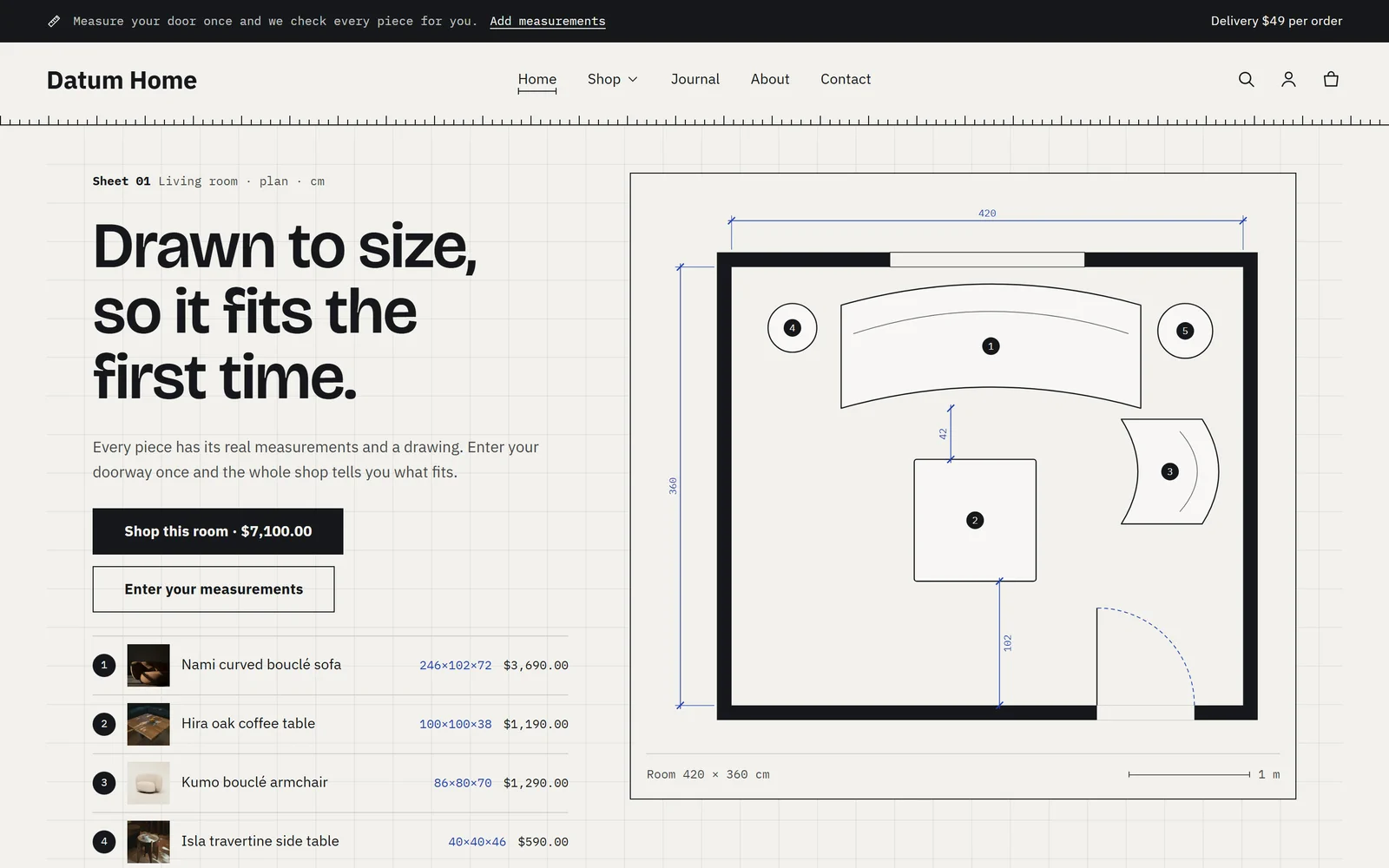
- Measured room is a home page section with a room plan at true scale, the pieces placed by the centimeter and a button that adds them all to the cart.
These features read product data that you add in the Shopify admin (metafields and metaobjects). When a product has no data, the matching block is hidden, so you can add data to your products little by little.
The three presets
A preset is a starting style for the theme. Each preset has its own colors, fonts and style settings. You choose a preset when you add the theme to your store.
| Preset | Made for | Style |
|---|---|---|
| Plumbline | Modern furniture | Drawing-paper white with blue dimension lines, Bricolage Grotesque, IBM Plex Sans and IBM Plex Mono fonts, square corners, a room plan on the home page |
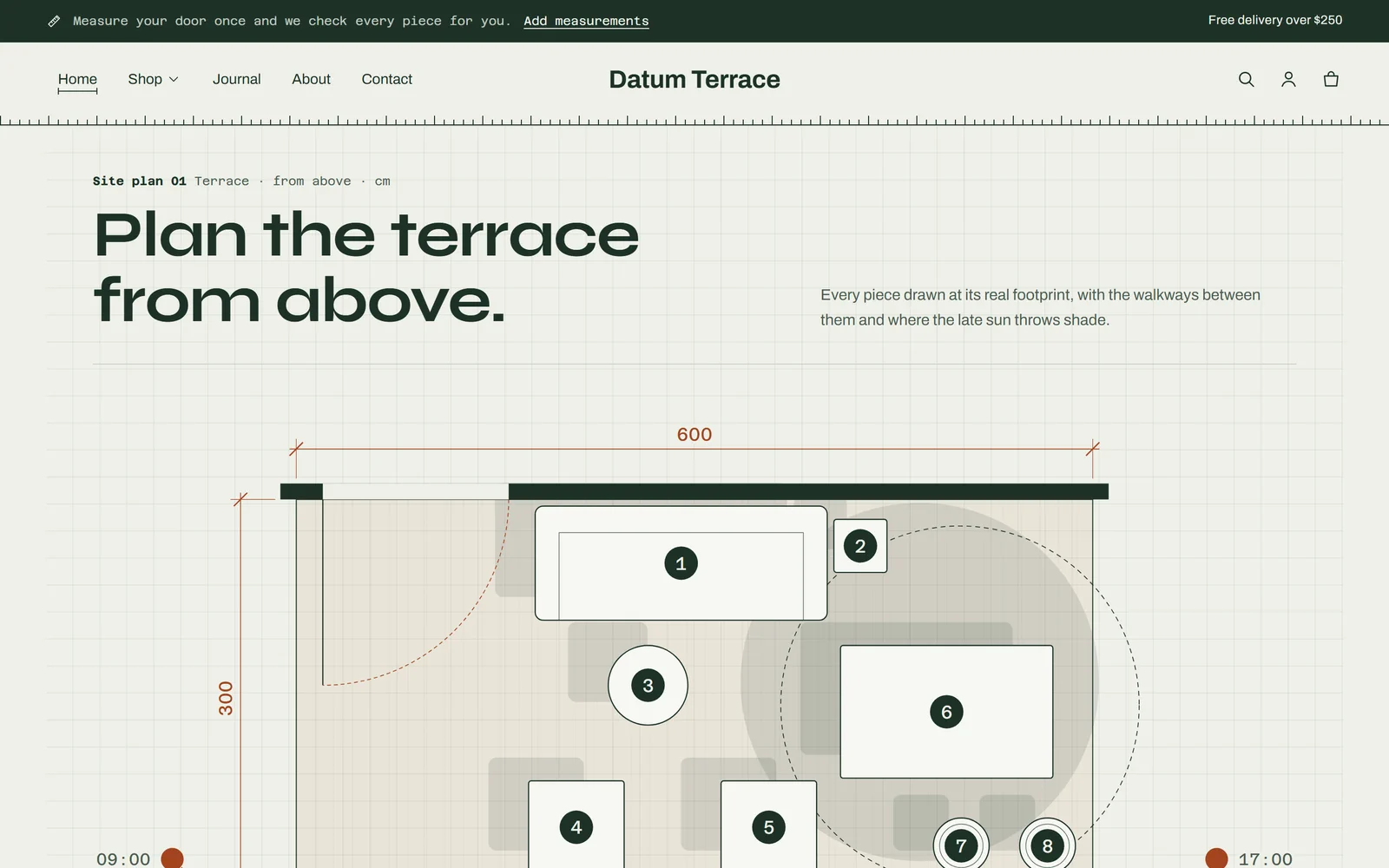
| Terrace | Outdoor and garden furniture | Pale stone and dark green with terracotta dimension lines, Syne, Archivo and Azeret Mono fonts, rounded buttons and cards, a site plan on the home page |
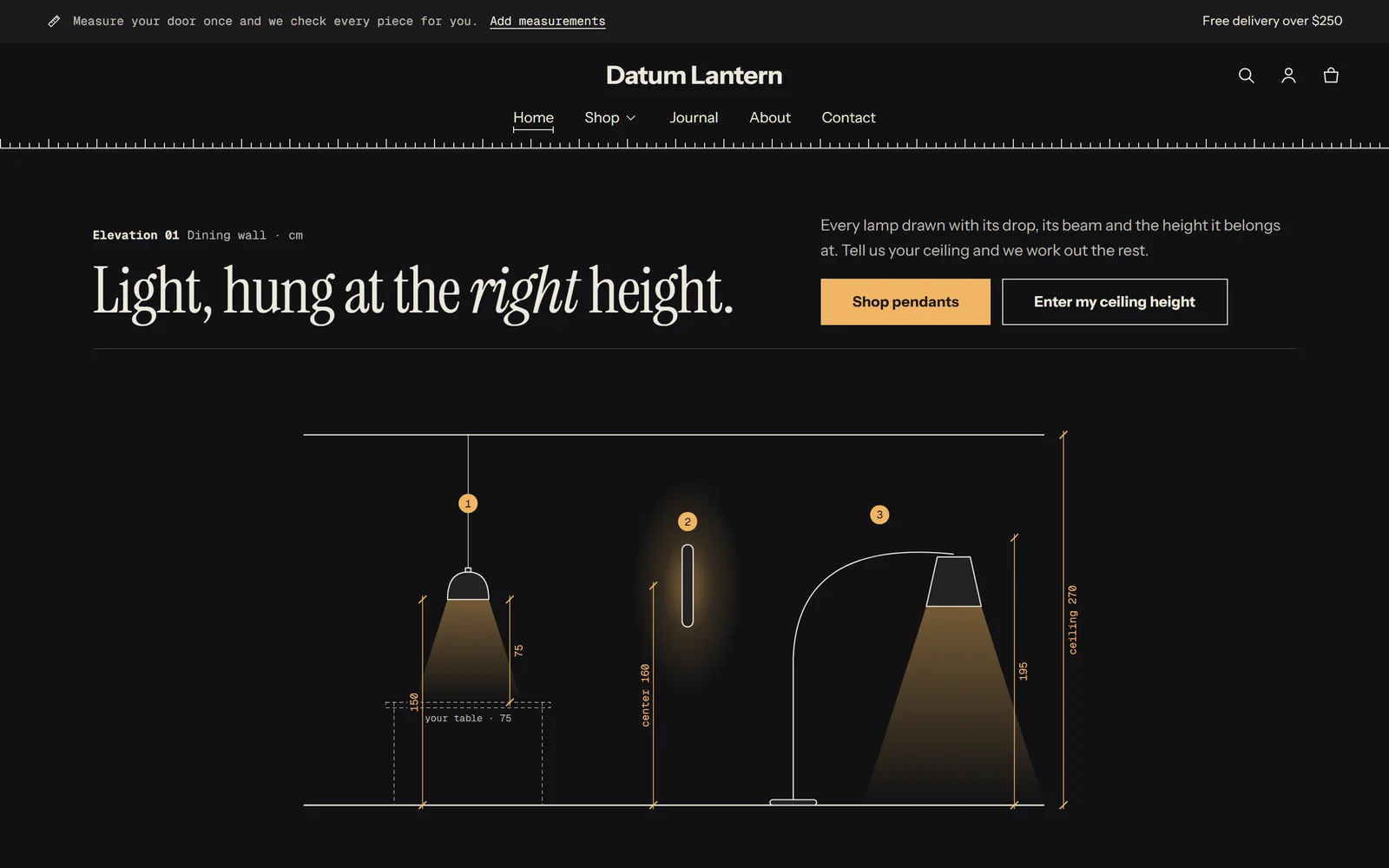
| Lantern | Lighting and décor | A near-black wall with warm light text and amber dimension lines, Instrument Serif, Instrument Sans and Geist Mono fonts, wider pages, a wall elevation on the home page |
To learn more about what each preset changes, see Installation and setup.
What's in this documentation
| Page | What you'll find |
|---|---|
| Installation and setup | Add the theme, choose a preset, preview, customize, publish and update |
| Theme settings | Every group in Theme settings, with recommended values |
| Product pages and furniture features | Dimensions, "Will it fit?", materials, samples, delivery and the Measured room |
| Getting started with measurements | What each dimension and delivery metafield does, what happens when one is missing, width bands and package sizes |
| Metafields and metaobjects setup | The exact product data definitions the theme reads, step by step |
| Sections and blocks reference | Every section and block with its settings |
| Selling globally | Languages, right-to-left layouts, countries, currencies, taxes and duties |
| Accessibility and performance | What the theme does for you, and how to keep your store fast |
| Frequently asked questions | Answers to common questions |
| Support | What support covers and how to contact us |
| Why Plumbline | The benefits of Plumbline for your store |
| Release notes | What's new in each version |
Quick start in 5 steps
- Add the theme. Add Plumbline from the Shopify Theme Store and choose the preset that matches your store. See Installation and setup.
- Add your brand. In the theme editor, go to Theme settings → Logo and favicon and upload your logo. Then adjust Colors and Typography if you want to. See Theme settings.
- Set up product data. Create the product metafield definitions and the "Material" metaobject in Settings → Custom data. See Metafields and metaobjects setup.
- Fill in your products. Add dimensions, materials, delivery details and samples to your products. Check a product page to see the new blocks. See Product pages and furniture features.
- Review and publish. Replace the demo content on the home page with your own products and text, check the store on a phone, and then publish the theme.